
Drawing & Reading the Wheel
Cast a chart in one click and read ChartVault's own SVG wheel — glyphs, retrogrades, angles, aspects, and the full-screen view.
Draw a chart
- Open a client card and click Charts ▾.
- Choose Draw Birth Chart (or any other type — see Chart types).
The wheel is computed and drawn instantly, inside ChartVault. There's no third-party chart site and no internet call — the city you picked when you added the client already resolved to the exact coordinates and time zone the chart needs.
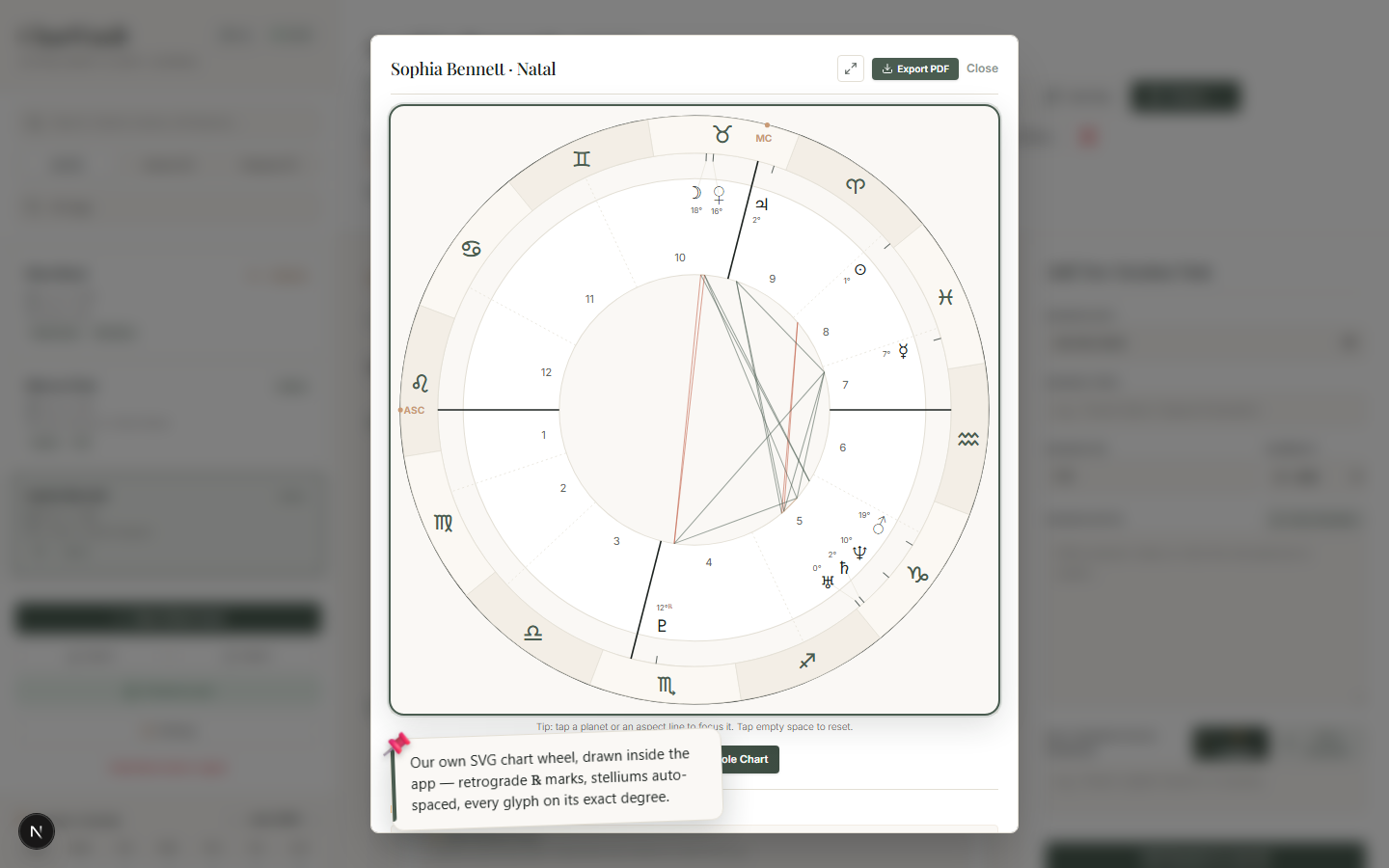
Reading the wheel
ChartVault draws its own SVG wheel, tuned for clarity:
- Zodiac ring with sign glyphs, the Ascendant at the 9-o'clock position.
- House cusps, with the angles (ASC / MC) emphasised.
- Planet glyphs placed at their exact degree, each labelled with its degree.
- Retrograde marks (℞) on every retrograde body.
- Aspect lines through the centre, colour-coded by aspect (see Orbs & aspects).
Stelliums never overlap
When several planets cluster within a few degrees, ChartVault automatically spaces the glyphs so none are hidden — while each glyph stays tied to its true degree by a leader line. A crowded stellium stays readable.
Make it full-screen
Every chart modal has an Enlarge ⤢ button in its header. Click it and the wheel fills the screen — ideal for reading a dense chart yourself or showing it to a client. Click Shrink (or the button again) to return to the normal size.
Accessibility
The wheel is drawn as an accessible SVG (role="img" with a title and description),
and every chart includes a screen-reader-friendly data table of the same
positions — so the chart is usable without relying on the visual wheel alone.
The same wheel, everywhere
Transit, Solar Return, progressed and every other chart type use this same renderer, so once you can read one wheel you can read them all. Bi-wheel charts (transit, progressed, solar arc, synastry) simply draw a second ring around the natal one.
Next
- Isolate a single placement with Interactive Focus.
- Switch the house system.
- Explore every chart type and analysis panel.